
Thanks for your feedback!
EDIT
To add a new plan, click the Create Plan button, represented by the + icon on the bottom right corner of the Plans page.
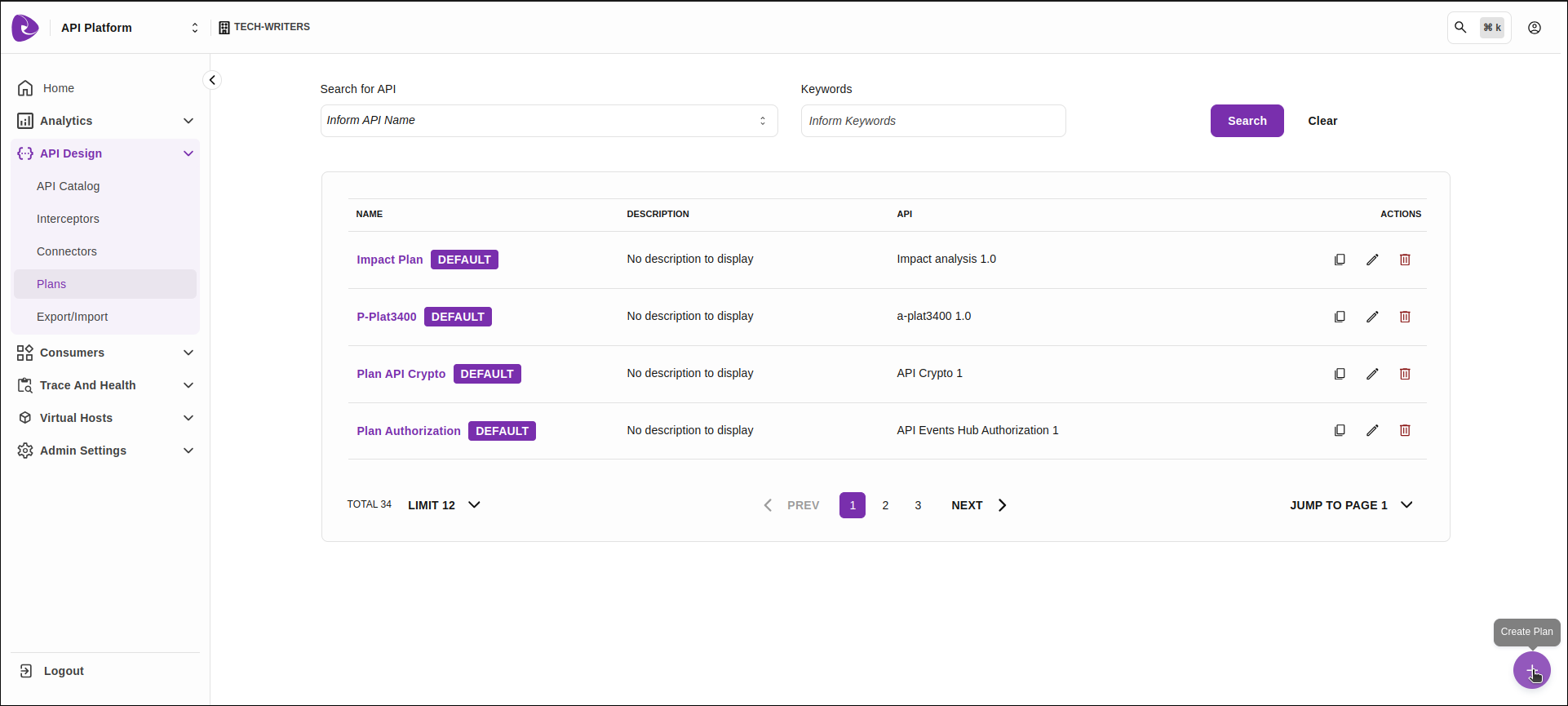
The registration is carried out over three stages: Overview, Flows and Summary.
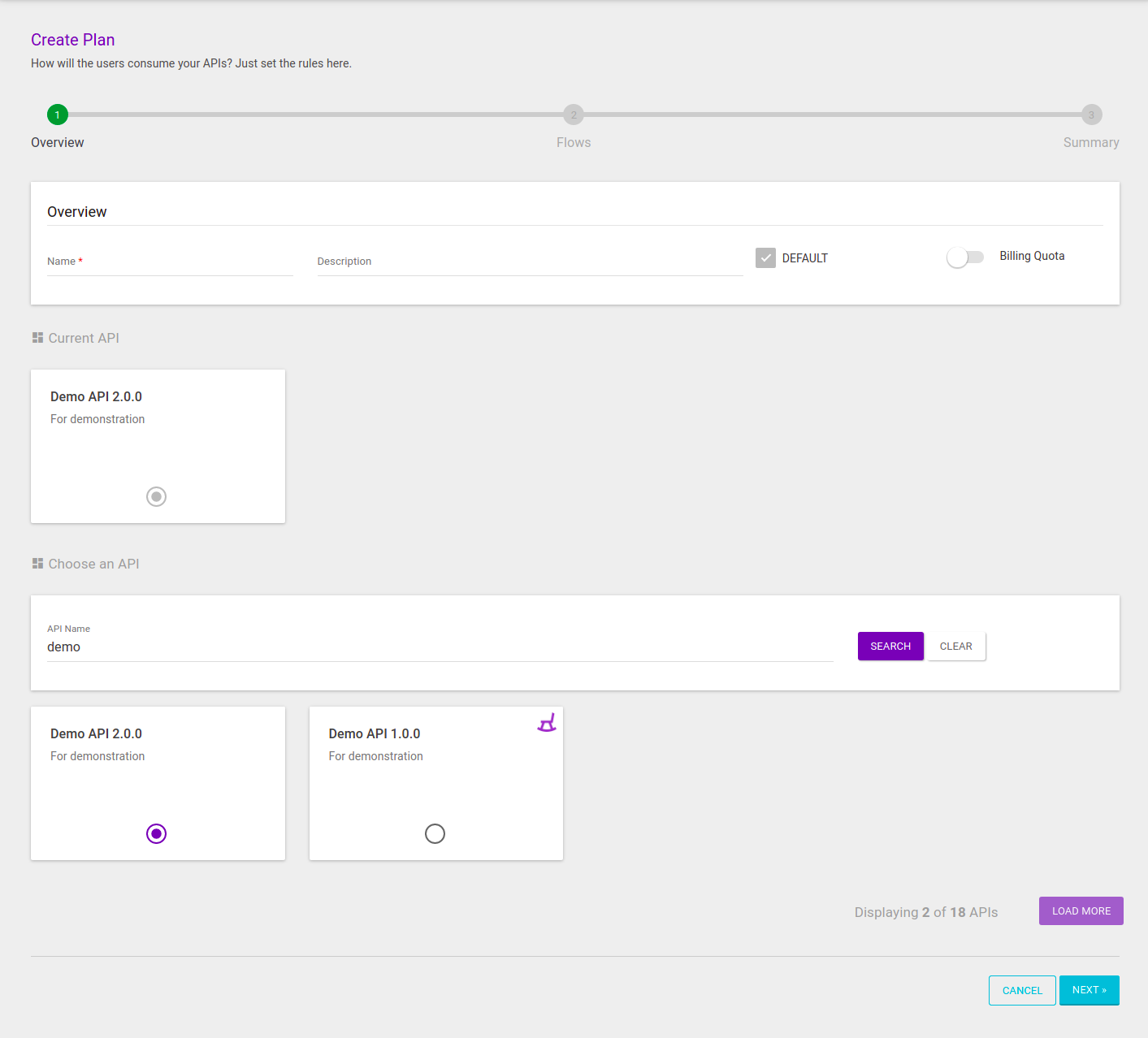
The first stage comprehends the insertion of basic information, on the upper part of the screen, and linking the new plan to an API, on the bottom part (the Choose an API section), as the image below shows.
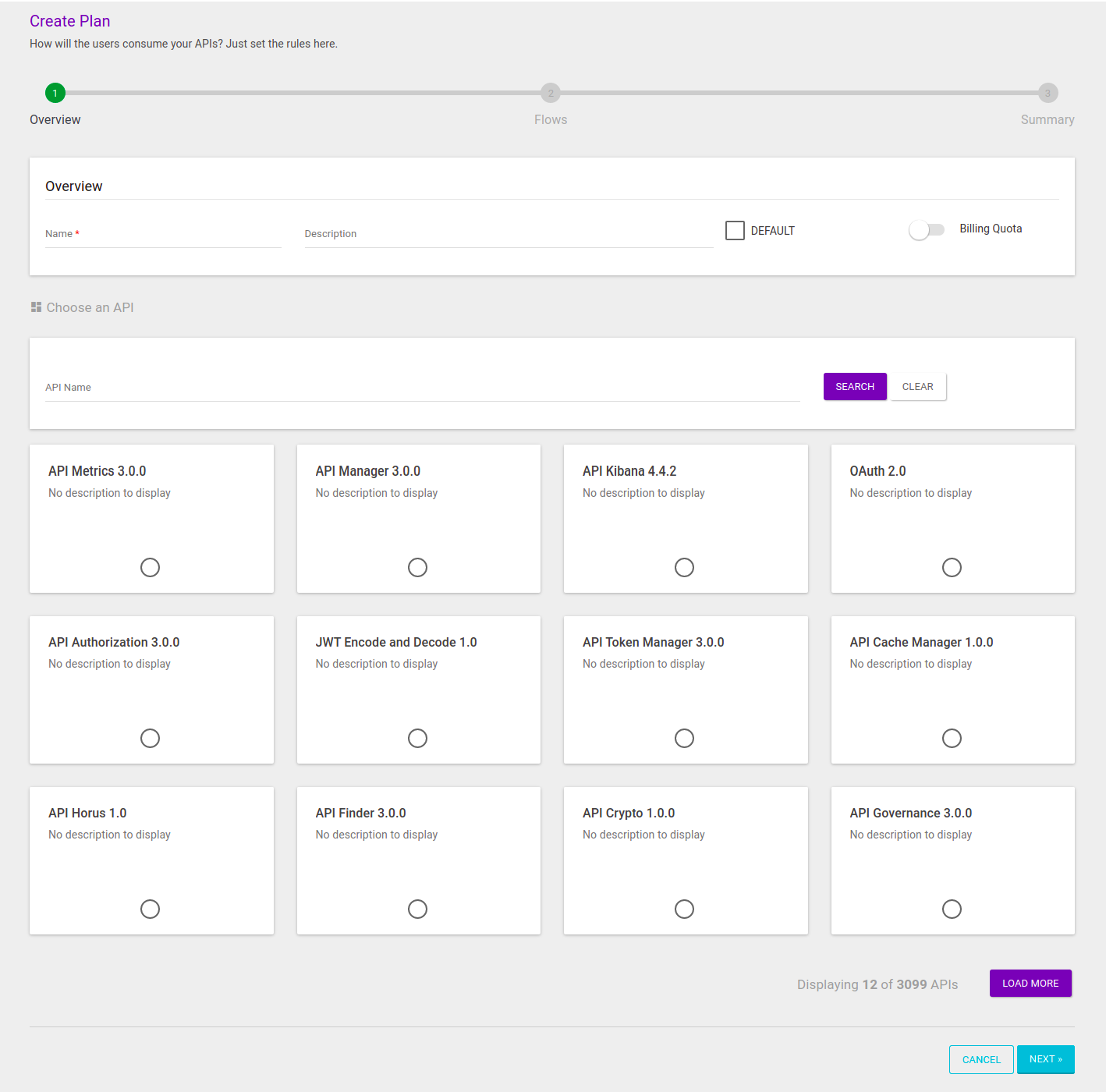
Name: include a unique name to the plan.
Description: non-required field, but useful to identify the plan more easily.
Default plan: when marked, the option determines that the plan will be the API’s default plan. If no plan is selected in the registration of an API, its default plan will be automatically attributed. Note that an API can only contain a single default plan.
Choose an API: every plan must be attributed to an API, which, in turn, can contain multiple plans.
Billing Quota: field to establish billing for the plan at hand. If the option is marked, new fields will be displayed for billing information to be entered. Read more about it here.
After filling in the fields above, you must choose an API to which the new plan will be linked (on the section Choose an API).
| Remember that you can only choose one API per plan (but an API can contain multiple plans, albeit only one will be its default plan). |
The APIs which are available on your Manager will be exhibited as cards, ordered by last modification. The screen will contain 12 cards at first, but you can load more APIs by clicking the Load More button, on the bottom right corner of the screen.
You can select an API from the list of cards or use the search field to filter APIs by name, which makes it easier to find the desired API if you there are many registered.
If you wish, you can clear the search by clicking the Clear button. In this case, the cards list will be reset.
On the example image below, we are filtering APIs by the name "Demo", which generated two results. From those, we selected "Demo API 2.0.0" to link our plan.
|
Note that there is an icon This icon is displayed to warn you that the API is an older version of another API, also registered. In this case, "Demo API 1.0.0" is an older version of "Demo API 2.0.0". Click here to read more about API versions. |
The selected API is then displayed on the section Current API.
If you need to change the selected API, just choose another card.
The second step in creating a plan is configuring the flows (Flows). In this step, you can add standard or custom interceptors to the request and/or response flows.
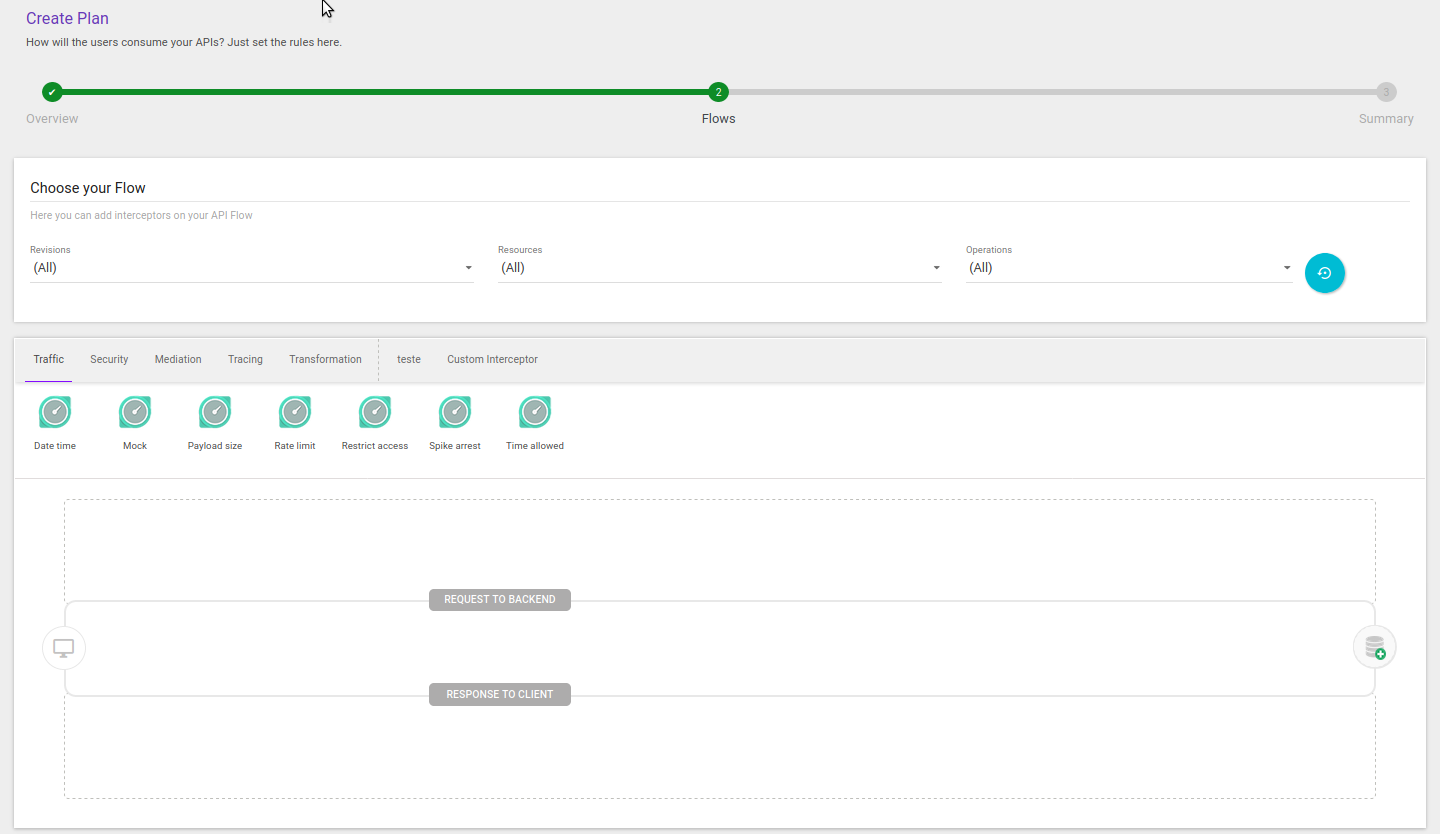
This step follows the same interceptor insertion rules used in the flows of a regular API, but applied to the context of a Plan. Learn more about API flows here and about the available interceptors here.
Interceptors can be configured with global scope (all/all), which means they are applied to all API resources and operations, regardless of the revision used. You can also associate interceptors with a specific API revision. Learn more about API revisions here.
| If you need to apply interceptors at the resource and operation level, you must select a specific API revision. This is because resources and operations may vary significantly between revisions, and the platform needs to identify the correct revision to apply the configured rules. |
| Interceptors associated with the Plan flow in a specific API revision are not automatically inherited by new revisions. When creating a new revision, the interceptors must be configured again according to the API’s requirements and compatibility. |
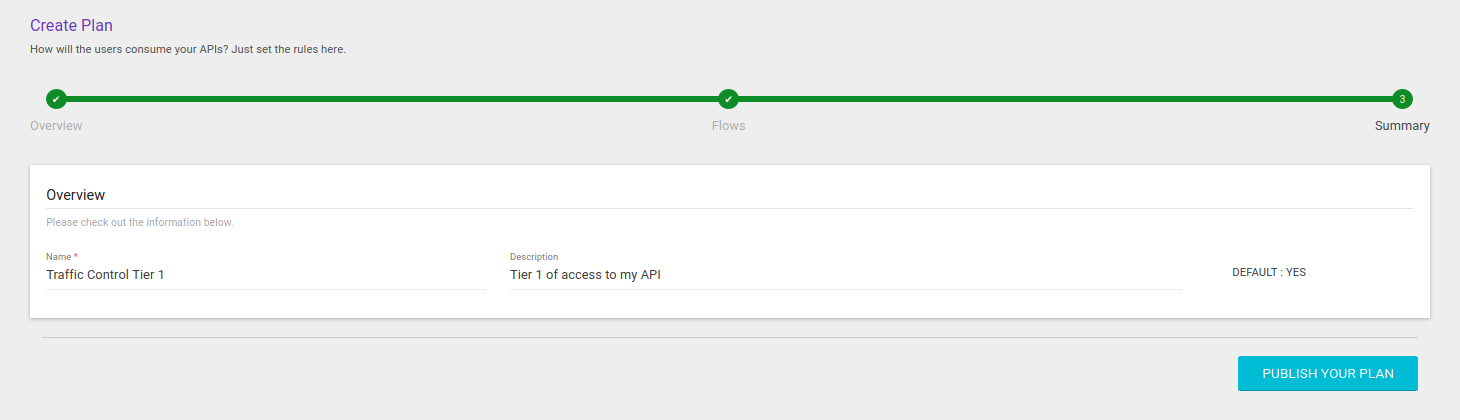
After adding the interceptors, click Next to proceed to the final step of creating a plan: the summary screen (Summary).
Share your suggestions with us!
Click here and then [+ Submit idea]